
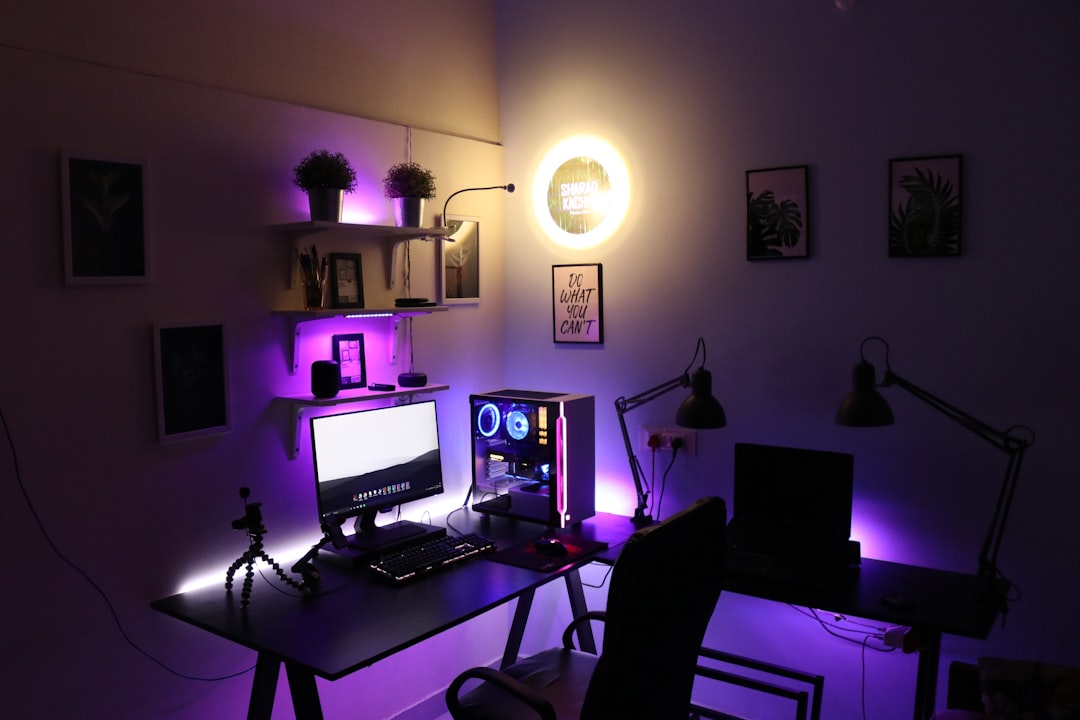
Modern gaming PCs contain tremendous computing power, yet many systems fail to reach their full potential due to suboptimal configuration. This comprehensive guide explores proven optimization techniques that extract maximum performance from your hardware. Whether you're experiencing lower-than-expected frame rates or seeking every possible advantage in competitive gaming, these strategies will help you achieve peak system performance.
Operating System Optimization
Windows configuration significantly impacts gaming performance. Default settings prioritize general computing tasks over gaming workloads, leaving performance on the table. Several straightforward adjustments can improve frame rates without requiring hardware changes.
Begin by disabling unnecessary startup programs that consume system resources. Many applications configure themselves to launch automatically, running invisibly in the background and consuming memory and CPU cycles. The Task Manager's startup tab allows you to disable non-essential programs, freeing resources for gaming. Be selective rather than aggressive, ensuring you maintain necessary system functions and security software.
Windows power plans deserve attention, particularly on desktop systems. The default balanced plan throttles processor performance to save energy, introducing performance limitations. Switching to the high-performance plan ensures your CPU operates at full capability during gaming sessions. Laptop users should balance performance needs against battery life considerations when away from mains power.
Graphics Driver Management
Graphics drivers directly affect gaming performance, with regular updates often delivering measurable improvements. Both major GPU manufacturers release frequent driver updates that optimize performance for new game releases and address bugs affecting existing titles.
Keep drivers current through manufacturer software rather than relying on Windows Update, which often lags behind latest releases. Clean installations remove accumulated software artifacts that can cause conflicts, particularly after major driver version changes. This process takes additional time but ensures optimal driver stability and performance.
Driver control panels offer numerous settings affecting gaming performance. Ensure maximum performance mode is selected rather than quality or balanced options. Adjust individual game profiles to optimize settings for specific titles, leveraging driver-level features like shader caching that reduce loading stutters.
In-Game Settings Optimization
Graphics settings within games dramatically affect performance. Understanding which settings impact frame rates most significantly allows intelligent compromises that maintain visual quality while improving performance.
Shadow quality typically exerts substantial performance impact with relatively subtle visual differences between high and ultra settings. Reducing shadow detail one or two notches often yields noticeable frame rate improvements without obvious visual degradation. Similarly, ambient occlusion settings affect performance significantly while contributing relatively subtle lighting enhancements.
Anti-aliasing represents another performance-intensive setting where compromise often makes sense. Modern temporal anti-aliasing techniques deliver excellent results at lower performance costs than traditional methods. Consider reducing anti-aliasing from maximum settings or switching to more efficient algorithms if your game offers multiple options.
Resolution and Upscaling Strategies
Native resolution gaming provides maximum image clarity but demands substantial GPU resources. Upscaling technologies offer compelling alternatives that balance performance and visual quality effectively.
DLSS and FSR reconstruct higher resolution images from lower base renders, delivering frame rate improvements with minimal visual compromise. Quality modes maintain image fidelity very close to native rendering while providing meaningful performance gains. Balanced and performance modes offer greater frame rate improvements with progressively more noticeable image quality tradeoffs.
Dynamic resolution scaling automatically adjusts rendering resolution to maintain target frame rates. This technology proves particularly useful in games with variable performance demands, ensuring smooth gameplay during demanding sequences that might otherwise cause stuttering.
System Cooling and Thermal Management
Thermal performance directly affects sustained gaming performance through thermal throttling mechanisms that reduce clock speeds when temperatures exceed safe thresholds. Maintaining optimal temperatures ensures your hardware operates at full capability throughout extended gaming sessions.
Case airflow optimization starts with ensuring intake and exhaust fans create positive air pressure that efficiently moves heat away from components. Dust accumulation impedes airflow significantly, making regular cleaning essential for maintaining thermal performance. Focus cleaning efforts on radiator fins, fan blades, and air intake filters where dust concentrates.
High-quality thermal paste application between CPU and cooler ensures efficient heat transfer. Thermal paste degrades over time, eventually reducing cooling efficiency and increasing temperatures. Reapplication every two to three years maintains optimal thermal performance, particularly on systems experiencing higher-than-expected temperatures.
Memory Optimization
System memory configuration affects gaming performance more than many realize. Proper memory setup ensures your CPU receives data efficiently, preventing bottlenecks that limit overall system performance.
Enable XMP or DOCP profiles in BIOS to ensure memory operates at its rated speed rather than default JEDEC specifications. This simple change can deliver measurable performance improvements, particularly in CPU-limited scenarios. Verify memory runs in dual-channel mode by installing modules in correct motherboard slots, typically alternating slots for two-module configurations.
Sufficient memory capacity prevents performance-degrading page file usage during gaming. While 16GB suffices for most current titles, 32GB provides headroom for memory-intensive games and background applications. Monitor memory usage during gaming to determine if capacity upgrades would benefit your specific usage patterns.
Storage Performance
Storage speed affects game loading times and reduces texture streaming stutters in open-world titles. Modern NVMe SSDs deliver dramatically better performance than older SATA drives, with benefits extending beyond simple load time reductions.
Install games on your fastest storage device, typically an NVMe SSD on modern systems. This placement reduces loading times and minimizes texture pop-in during gameplay as assets stream from storage. Ensure sufficient free space remains on gaming drives, as filled drives experience performance degradation.
DirectStorage technology in Windows 11 and supported games leverages NVMe performance more effectively, reducing CPU overhead during asset loading. While game support remains limited currently, this technology will become increasingly important, making NVMe storage a worthwhile investment for future-proofing.
Network Optimization for Online Gaming
Network performance critically impacts online gaming experience. While raw bandwidth matters, latency and stability prove equally important for responsive competitive gaming.
Wired Ethernet connections provide superior stability and lower latency compared to Wi-Fi. Even modern Wi-Fi standards introduce additional latency and occasional packet loss that wired connections avoid. Reserve Wi-Fi for situations where wired connections prove impractical.
Quality of Service settings in router firmware can prioritize gaming traffic over other network activity. This prioritization prevents bandwidth-intensive background tasks from introducing latency spikes during gameplay. Configure QoS rules to recognize gaming traffic and allocate appropriate bandwidth priority.
Monitoring and Benchmarking
Performance monitoring tools provide objective data about system performance, identifying bottlenecks and verifying optimization effectiveness. Establishing baseline performance before optimization allows you to measure improvement from specific changes.
MSI Afterburner with RivaTuner Statistics Server provides comprehensive real-time performance monitoring during gameplay. Track frame rates, GPU and CPU utilization, temperatures, and frame times to understand system behavior. This data reveals whether GPU or CPU limitations constrain performance, guiding further optimization efforts.
Dedicated benchmarking tools and in-game benchmark modes offer standardized testing scenarios for consistent performance comparisons. Run benchmarks before and after optimization changes to objectively measure their impact. This methodical approach identifies effective optimizations while avoiding changes that fail to improve performance.
Maintenance Best Practices
Regular maintenance preserves system performance over time, preventing gradual degradation that many users accept as normal aging. Establishing maintenance routines keeps your system operating at peak capability.
Schedule regular dust cleaning every three to six months depending on environmental conditions. Remove dust buildup from fans, heatsinks, and filters before accumulation significantly impacts cooling performance. This preventive maintenance avoids thermal throttling and extends component lifespan through reduced operating temperatures.
Periodic fresh Windows installations eliminate software accumulation that gradually degrades system performance. While modern Windows versions manage background processes better than predecessors, clean installations periodically restore like-new responsiveness. Cloud save support in most modern games makes fresh installations less disruptive than previously.